Cursor vs. GitHub Copilot: Which AI Coding Tool Is Actually Useful for Marketing Teams?
 Written by Martin J.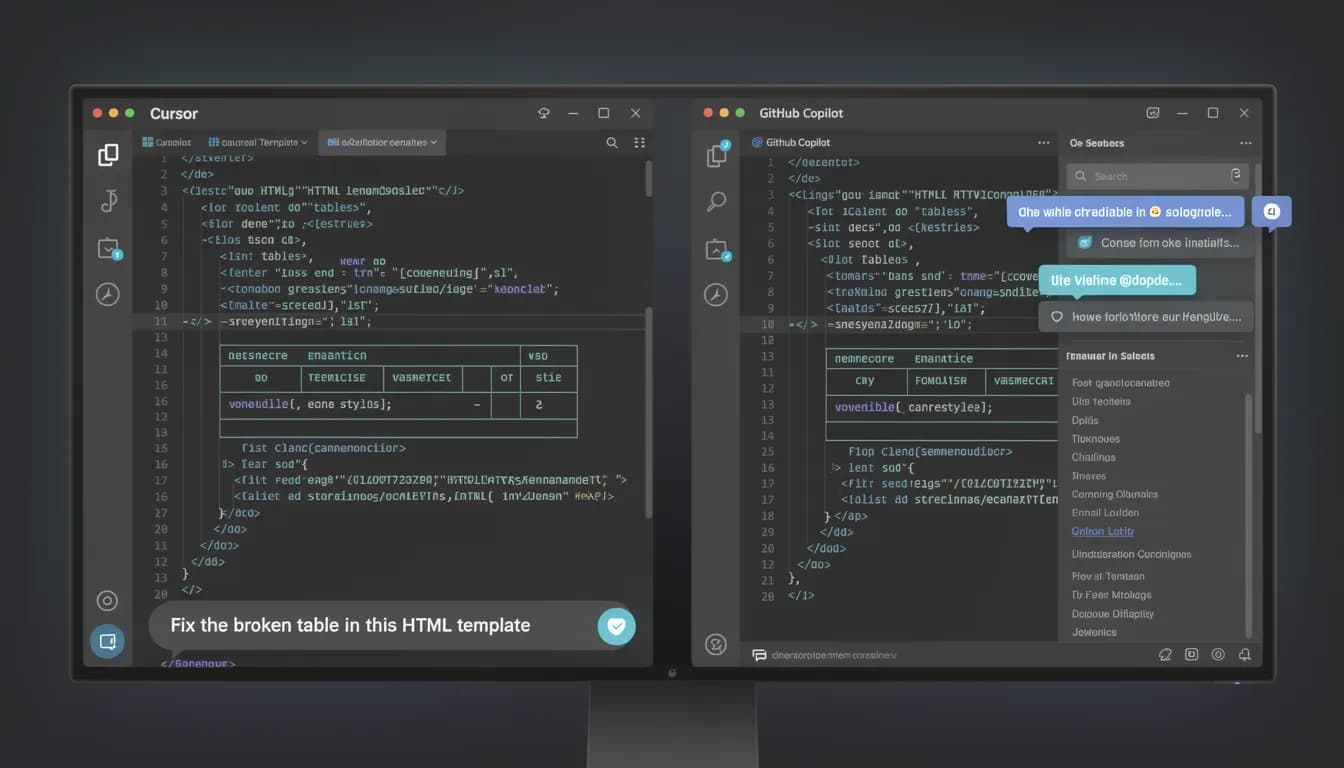
You didn't study computer science. You learned enough to automate your reports, edit templates, and write the occasional Python script that saves you two hours a week. Now you've heard that Cursor and GitHub Copilot are both tools that make that easier. But every comparison you can find is written for engineers — comparing token context windows and IDE extensions you've never heard of. Here's the comparison you actually needed: which one makes more sense for a marketer who writes code sometimes but is definitely not a developer.
What Cursor and GitHub Copilot Actually Are (For Non-Developers)
Let's start with the honest version of what these tools do, not the developer marketing version.
Cursor is an AI-native code editor. You open it like you'd open any text editor, but instead of writing code alone, you have a chat interface alongside your code where you can ask it to explain what something does, rewrite a section, or build something from a description you give in plain English. The key point for non-developers: Cursor understands your entire project at once — if you open a folder of files, it can see all of them and help you work across them together.
GitHub Copilot is an AI code assistant that plugs into an editor you're likely already using — Visual Studio Code (VS Code) is the most common. As you type code, Copilot suggests what comes next, line by line. It's less of a "talk to your code" experience and more of a "faster autocomplete" experience. Newer versions of Copilot include a chat interface (Copilot Chat), which moves it closer to Cursor's conversational model.
The practical difference from a non-developer's perspective: Cursor is a standalone workspace where you bring your files and ask questions. Copilot is an add-on to an existing editor that helps you write faster once you already know what you're trying to write. Cursor has a lower floor for getting started. Copilot has better integration with team development environments that your engineering colleagues already use.
Do you need to know how to code to use these tools?
For Cursor: not really. You can describe what you want in plain English, paste an error message, or ask it to explain what a script does without understanding it yourself. Non-developers get genuine value out of Cursor without significant prior coding knowledge.
For Copilot: more so. Copilot is designed to speed up code you're already writing — it's better if you know roughly what you're doing and want help filling in the details. The chat interface in newer versions helps, but the core product assumes you're familiar with writing code in an IDE.
Who Uses Cursor vs. Copilot (and Why It Matters for Marketers)
Understanding the primary user of each tool explains a lot about why one will probably work better for you.
GitHub Copilot was built for software developers already using VS Code. Its default assumptions: you know what a terminal is, you've worked with Git before, you're probably deploying code somewhere. These assumptions are fine if you're a developer. They create friction if you're a marketing manager who just wants to automate a spreadsheet formula.
Cursor was built for a broader definition of "person who writes code" — including the growing number of non-developers building lightweight scripts, automations, and tools in their day jobs. The "vibe coding" shift of 2025–2026 — where people without CS backgrounds build functional tools by describing what they want to an AI — is something Cursor was designed for and Copilot was retrofitted for after the fact.
The vibe coding context: In the past two years, the barrier to writing functional code dropped dramatically. Marketing managers are writing Google Apps Scripts to automate reporting. Revenue operations teams are building Python scripts to clean data. Growth marketers are editing HTML email templates without an engineering handoff. These users exist in large numbers, and both Cursor and Copilot are competing for them — but with different starting assumptions about how much the user already knows.

Head-to-Head: 5 Marketing Team Use Cases
Use Case 1: Writing and Editing HTML/CSS for Email Templates or Landing Pages
You've been handed an HTML email template that needs edits. The structure is in a file you can't fully read. You need to change colors, swap a section, fix a broken table, and you don't want to spend 45 minutes trying to understand someone else's code before touching it.
Cursor: Load the HTML file into Cursor. Ask "what does this file do" and get a plain-English summary. Then ask it to make specific edits in natural language: "replace the background color in the hero section with #1A1A2E" or "remove the second pricing row and center the remaining content." Cursor executes these changes directly in the file. You review and save.
Copilot: Less suited for this specific workflow. Copilot's strength is generating code as you write; it's less effective at explaining and editing code you didn't write. Copilot Chat (the newer conversational feature) can do some of this, but the experience is less fluid than Cursor for a file you're approaching cold.
Edge: Cursor. For HTML/CSS work where you're editing an existing file you didn't write, Cursor's ability to understand and modify the whole file with natural language instructions is meaningfully better.
Use Case 2: Writing Scripts to Automate Data Workflows
You need a Python script to pull data from a Google Sheets export, clean it, and produce a formatted CSV. Or a Google Apps Script that auto-sends a Slack notification when a spreadsheet value changes. You know what the output should look like; you don't know the syntax.
Cursor: You describe what you want in the chat: "Write a Python script that reads a CSV file, removes rows where column B is empty, and outputs a new CSV sorted by column C descending." Cursor writes the script, explains what it does, and you can ask follow-up questions or request modifications. For task-based scripting where you know the input and output but not the code, this is Cursor's strongest use case.
Copilot: Better for developers who already know what they're writing and want autocomplete assistance. If you start typing import pandas as pd and roughly know what you want to do, Copilot's suggestions are fast and accurate. If you're starting from a blank file and want to describe the task, the workflow is more friction than Cursor.
Edge: Cursor. For starting-from-scratch scripts when you know the task but not the code, Cursor's conversational model has a significantly lower floor.
Use Case 3: Working Inside an Existing Developer Stack
Your company uses VS Code. Your engineering team has a shared codebase setup with specific extensions, linting rules, and Git workflows. You occasionally need to make small edits to shared files — a configuration change, a small script update — without disrupting your team's environment.
Copilot: This is Copilot's strongest position for marketing teams embedded in a tech company. Copilot lives in VS Code, which your team already uses. Zero additional setup. Your changes stay in the same Git workflow. You're not introducing a separate tool that sits outside your engineering team's established environment.
Cursor: You can import VS Code settings and extensions into Cursor, and it's compatible with most codebases. But it's a separate application. For teams with strict tooling standards or where the engineering team manages the development environment, introducing Cursor creates coordination overhead that Copilot avoids.
Edge: Copilot. For collaboration within an existing VS Code developer environment, Copilot's native integration eliminates friction that Cursor doesn't.
Use Case 4: Debugging Something That Broke
A script that was working yesterday isn't working today. You have an error message you don't understand. You need to fix it without spending 20 minutes reading Stack Overflow.
Cursor: Paste the error message directly into the Cursor chat: "I'm getting this error — what does it mean and how do I fix it?" Cursor reads the error, looks at the relevant code in context, and explains what happened and how to fix it. This is one of the highest-leverage use cases for non-developers, and Cursor handles it exceptionally well.
Copilot: Copilot Chat can do this in newer versions. The experience is functional but generally less seamless than Cursor for zero-context debugging, partly because Cursor is better at seeing the whole project context around the error rather than the specific file you're viewing.
Edge: Cursor. For error messages and zero-context debugging, Cursor's project-aware chat is more useful for non-developers than Copilot.
Use Case 5: Writing Documentation, README Files, or Technical Briefs
You need to write a README for a script you built, document an internal process, or create a technical brief explaining how something works to stakeholders who aren't technical.
Both tools handle this reasonably well. Copilot is slightly better if you're writing documentation inline in VS Code alongside the code it describes — the context is right there. Cursor is better for standalone documentation files where you want to generate structured content from a description.
Edge: Tie. Choice here depends on where you're writing the documentation, not which tool is technically superior.
Pricing: What You Actually Pay
Cursor:
- Free tier: 2,000 code completions/month, 50 Claude requests/month. Good for light use.
- Pro: $20/month. Unlimited completions, 500 premium model requests/month.
- Pro+: $40/month. Increased premium limits for heavy users.
GitHub Copilot:
- Individual: $10/month or $100/year.
- Business: $19/month per seat (includes admin controls, policy management, audit logs).
- Enterprise: $39/month per seat (custom models, GitHub Enterprise integration).
For marketing teams: Cursor at $20/month for one person is the cheaper option for solo use. GitHub Copilot's Business plan at $19/month per seat becomes cost-effective for team-wide rollout where you need centralized management and don't want to onboard everyone onto Cursor.
Which has the better free tier? Cursor's free tier is more generous for experimentation. 50 premium model requests/month is enough to meaningfully test whether it's useful for your workflow before paying. GitHub Copilot's free trial is 30 days.

The Honest Verdict for Marketing Teams
If you're a solo marketer or a small team doing lightweight coding (scripts, HTML, automations): Cursor. The conversational model, the lower floor for non-developers, and the project-wide context make it the better tool for the specific tasks non-developer marketers actually do. Start with the free tier and upgrade to Pro ($20/month) when you hit the limit.
If your marketing team works inside a larger tech organization using VS Code as the standard IDE: GitHub Copilot. The integration advantage matters when you're working alongside engineers in a shared environment. Copilot fits in without friction. Cursor requires a separate application that engineers may not support.
If you do both content/marketing work AND light development work independently: Cursor as your primary tool. Use Copilot if your company provides it as part of a GitHub enterprise subscription.
What about the three-way comparison? (Cursor vs. Copilot vs. Claude Code)
Claude Code (Anthropic's CLI-based coding assistant) is worth a mention for completeness. Claude Code is terminal-first — it runs in your command line, not a GUI. If you're comfortable with the terminal, it's powerful for complex multi-file tasks. If you're not a developer, the terminal workflow is a steeper learning curve than either Cursor or Copilot. For the non-developer marketing audience, Claude Code is not the right starting point.
How This Fits Into an AI Marketing Workflow
Cursor and Copilot are coding and automation tools. They're complementary to marketing platforms — not replacements for them.
A realistic AI marketing stack for a modern in-house team:
- Cursor or Copilot: Handle the code and automation layer — scripts, HTML templates, data transformations, lightweight tooling.
- Allable: Handle the SEO, content strategy, AI visibility, and campaign analytics layer — where coding tools have no role.
If you're using Cursor to write a Python script that pulls organic traffic data from GSC, you'd still use a platform like Allable to interpret that data, track AI search visibility, and run keyword research. The tools don't overlap; they serve different parts of the marketing workflow.
For a deeper look at how AI coding tools fit into marketing operations, see our guide on AI use cases in marketing and automation vs AI.
Frequently Asked Questions
- Can I use Cursor or Copilot without coding experience?
- Cursor: yes, with a reasonable learning curve. The conversational interface means you can describe what you want in plain English and get working code without knowing syntax. You'll need to be comfortable reading the output to check it makes sense. Copilot: less so — it's more useful once you have some baseline familiarity with writing code in an IDE. For complete beginners, Cursor is the better starting point.
- Which is better for writing Google Apps Scripts?
- Cursor. Google Apps Scripts are JavaScript-based automations that run inside Google Workspace. For writing them from scratch when you know what you want but not the code, Cursor's "describe the task, get the script" workflow is more effective than Copilot's autocomplete model. You'll need to paste the finished script into Google Apps Script editor to run it.
- Does GitHub Copilot work outside VS Code?
- Yes — GitHub Copilot has extensions for JetBrains IDEs (IntelliJ, WebStorm, PyCharm), Visual Studio, and Neovim. There's also a standalone GitHub Copilot in the GitHub web interface. The VS Code version is the most polished, but the tool isn't locked to one editor.
- Is Cursor safe for marketing data and company files?
- Cursor uses AI models (primarily Claude and GPT-4) to process your code. By default, it sends code context to these models for analysis. Cursor's Privacy Mode disables storing and training on your code. For sensitive company data or proprietary code, review Cursor's privacy settings and your company's AI tool policy before using it with internal files.
- What's the difference between Cursor and Claude Code for marketers?
- Claude Code (from Anthropic) is a terminal-based coding assistant — it runs in your command line and is designed for complex, multi-file software engineering tasks. It's powerful but requires comfort with the terminal. Cursor has a graphical interface that non-developers find more approachable. For marketers new to coding tools, Cursor is the significantly lower-friction option. Claude Code is better suited for technical marketers or marketing engineers who work at the terminal regularly.
Your AI marketing stack starts here
Allable handles what Cursor and Copilot can't — keyword rankings, AI search visibility, and content strategy in one platform.